
Download OldNewExplorer – Free Windows File Explorer Customization Tool for Windows 10 & 8.1
OldNewExplorer is a lightweight, free file explorer customization tool designed for Windows 10 and 8.1 users who miss the classic look and feel of the Windows 7 File Explorer. Developed by independent programmer Tihiy, this utility allows you to restore the familiar interface elements—like the traditional command bar, status bar, and library grouping—without altering your system files. If you're frustrated by the modern Ribbon interface introduced in Windows 8, OldNewExplorer offers a seamless way to bring back the intuitive design that many users preferred. The software is completely safe, portable, and reversible—uninstalling it restores your system to its original state. With customizable appearance settings and behavioral tweaks, it's an ideal solution for users who value familiarity and efficiency over flashy modern UIs.
Key Features of OldNewExplorer
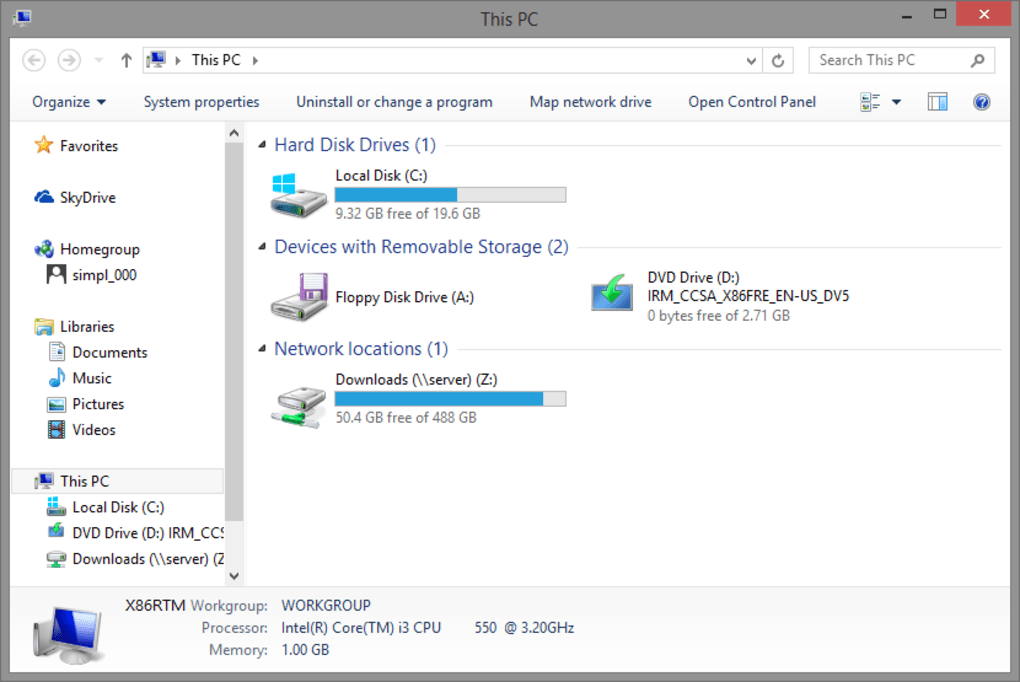
OldNewExplorer stands out as a powerful yet simple tool for those seeking a nostalgic Windows 7-style experience. One of its most notable features is the ability to replace the modern Ribbon bar with a classic command bar, a move that brings back the clean, compact layout users loved. This change alone makes navigation smoother and more efficient, especially for keyboard users. The tool also restores the old drive grouping and library structure from Windows 7, allowing you to organize your files exactly as you did in the past. This is particularly helpful for users who rely on quick access to drives and common folders.
Another major advantage is the inclusion of the details pane and status bar—features that were minimized or removed in newer Windows versions. These elements provide real-time file information and system feedback, enhancing usability. The software also supports shell extensions that integrate directly into Windows Explorer, ensuring a seamless experience without requiring third-party replacements. Unlike more complex alternatives like Total Commander, OldNewExplorer doesn’t replace the entire file manager—it enhances the existing one, making it ideal for users who want minimal disruption.
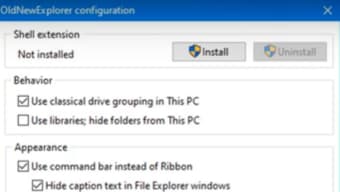
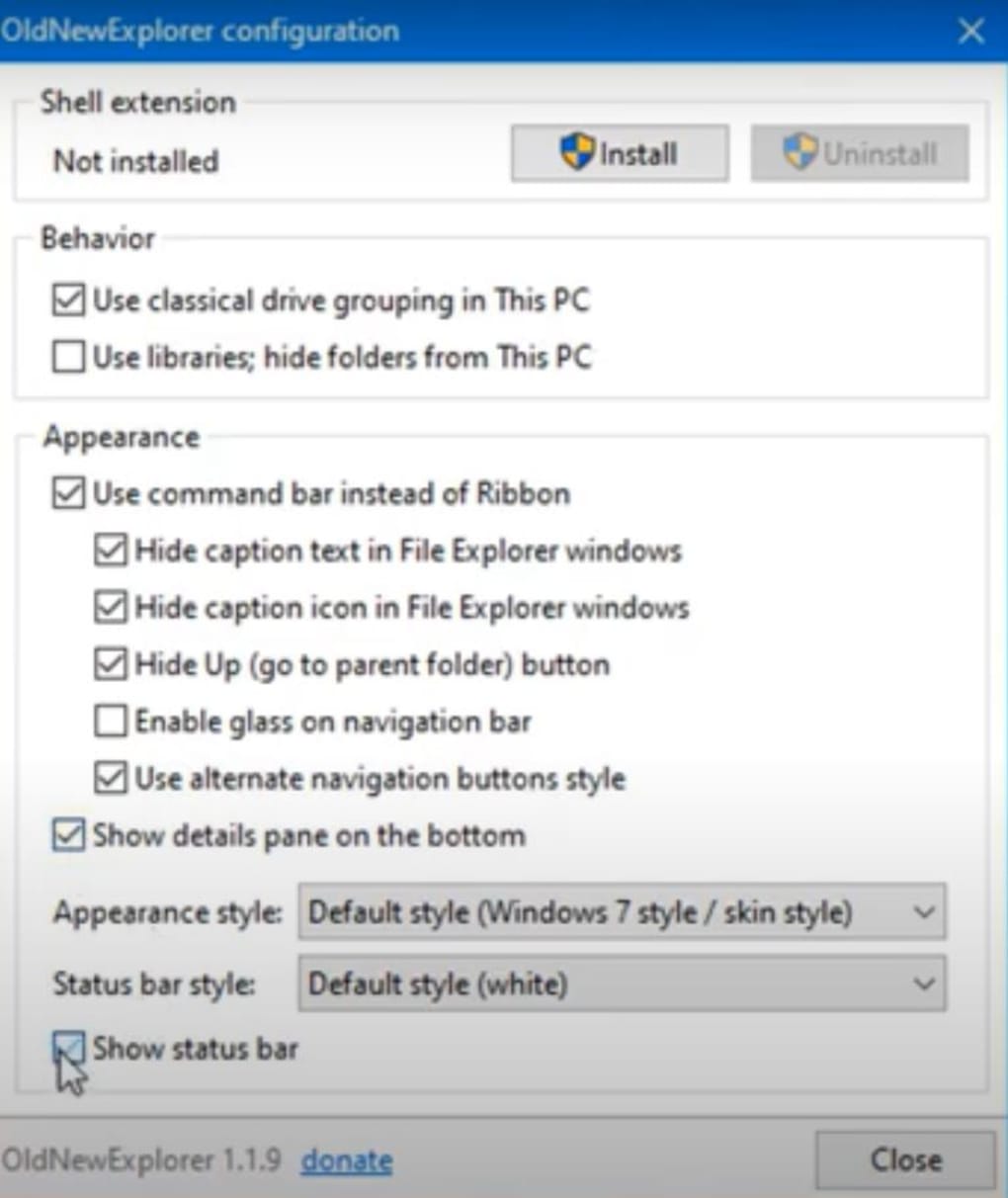
Additionally, OldNewExplorer is fully customizable. You can tweak the appearance, behavior, and layout to match your preferences. The interface is divided into three main sections: Shell Extension, Behavior, and Appearance—each offering precise control over different aspects of the explorer.
Whether you want to disable the Ribbon, restore the old toolbar, or enable the status bar, the tool gives you full control. All changes are reversible, so you can experiment safely. This makes it a low-risk, high-reward option for users who are hesitant to try major system changes.
Installation & Usage Instructions
Installing OldNewExplorer is straightforward and requires no technical expertise. First, download the latest version from the official developer’s website. The software is available as a standalone executable, meaning it doesn’t require a traditional installer. Simply run the downloaded file, and a simple setup wizard will guide you through the process. During installation, you’ll be prompted to choose whether to install the shell extension, which integrates OldNewExplorer with Windows Explorer.
Once installed, launch the tool from the Start menu or desktop shortcut. The main interface is clean and intuitive, divided into three tabs: Shell Extension, Behavior, and Appearance. In the Shell Extension tab, you can enable or disable the integration with File Explorer. The Behavior tab lets you restore the old Windows 7-style drive grouping and library organization. You can also choose whether to keep the new Windows 8+ features or fully switch to the classic layout.
The Appearance tab is where the real customization happens. Here, you can replace the Ribbon with a traditional command bar, enable the details pane (which shows file properties in real time), and activate the status bar for file operation feedback. Each setting is accompanied by a clear description, so you won’t be confused about what each option does. After making your selections, click “Apply” to see the changes instantly in File Explorer.
Using OldNewExplorer is entirely non-invasive. You can test different configurations without fear of system instability. If you decide you don’t like the changes, simply go back to the tool and disable the shell extension or uninstall the software entirely. Your system will revert to its original state, ensuring no lasting impact.
Compatibility & System Requirements
OldNewExplorer is designed specifically for Windows 10 and Windows 8.1, making it ideal for users still running these operating systems. It is not compatible with Windows 7 or later versions like Windows 11, which have undergone further UI changes. The tool is lightweight and runs efficiently on most modern PCs, requiring minimal system resources. It supports both 32-bit and 64-bit architectures, ensuring broad compatibility across different hardware setups.
There are no additional software dependencies, which means you don’t need to install .NET Framework or other runtime libraries to use it. This makes it easy to deploy in both personal and professional environments. The software is also compatible with all standard file systems, including NTFS, FAT32, and exFAT, so you can manage your files regardless of storage type.
For users on Mac or Linux, OldNewExplorer is not available, as it is a Windows-only application. However, those seeking similar functionality on other platforms can explore alternatives like Explorer++ or CubicExplorer. On Android and iOS, no direct equivalent exists, but file management apps like Solid Explorer offer some comparable features. For Windows users, though, OldNewExplorer remains one of the most effective tools for restoring the classic File Explorer experience.
Pros and Cons
- Pros:
- Free to download and use with no hidden costs
- Restores the classic Windows 7 File Explorer look and feel
- Easy to install and uninstall—no system changes required
- Lightweight and fast, with minimal impact on system performance
- Supports customization of command bar, status bar, and details pane
- Safe and reversible—system returns to original state after removal
- Perfect for users who dislike the modern Ribbon interface
- Cons:
- Only works on Windows 10 and 8.1—no support for Windows 11
- Not available for Mac, Linux, Android, or iOS
- Interface is minimal and lacks advanced features like dual-pane view
- Depends on the Windows Shell, so may conflict with other shell mods
- Developed by a single independent creator—no official support team
Frequently Asked Questions (FAQ)
-
Is OldNewExplorer safe to download and use?
Yes, OldNewExplorer is safe to use. It’s developed by an independent programmer and distributed through trusted channels. The software does not contain malware, adware, or tracking components. It’s also fully reversible—uninstalling it restores your system to its original state.
-
Can I use OldNewExplorer on Windows 11?
No, OldNewExplorer is currently not compatible with Windows 11. It’s designed specifically for Windows 10 and 8.1. The developers have not yet released a version for newer Windows versions.
-
Does OldNewExplorer replace the default File Explorer?
No, it doesn’t replace File Explorer. Instead, it enhances it by modifying the interface and behavior. It integrates as a shell extension, allowing you to keep the default explorer while adding classic features.
-
Is there a portable version available?
Yes, OldNewExplorer is available as a portable executable. You can run it directly from a USB drive or folder without installation.
-
Can I customize the appearance beyond the default options?
While the customization options are limited to the core interface elements (command bar, status bar, details pane), they are fully adjustable. You can enable or disable each feature based on your preference.
Conclusion & Call to Action
If you’re a Windows 10 or 8.1 user who misses the clean, efficient design of the Windows 7 File Explorer, OldNewExplorer is a must-try. It’s a free, secure, and lightweight tool that brings back the classic interface without compromising system stability. Whether you’re a long-time Windows user or someone who values consistency in your digital workspace, this software offers a simple yet effective solution.
With its easy installation, reversible changes, and customizable features, OldNewExplorer stands out as one of the best file explorer customization tools available. While it has some limitations—like no support for Windows 11 or mobile platforms—it delivers exactly what it promises: a nostalgic, functional, and user-friendly experience.
Download OldNewExplorer today and reclaim the classic Windows 7 File Explorer look on your PC. It’s free, safe, and easy to use—perfect for anyone who wants a simpler, more familiar way to manage files.







